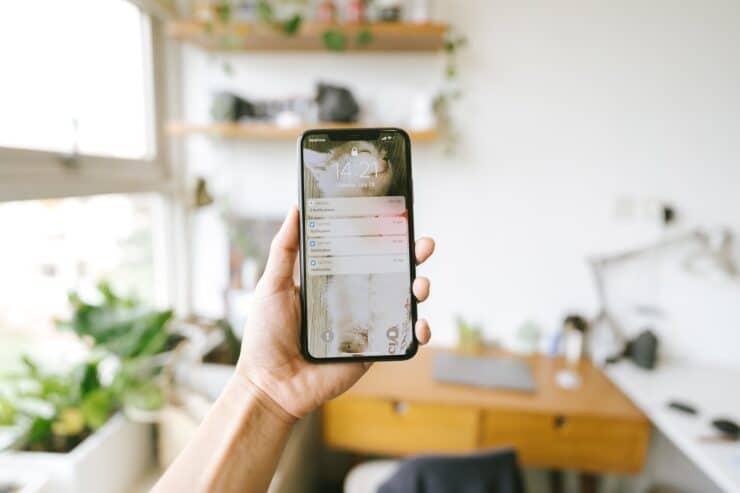
Whether you’re using a desktop or mobile device, we’ve got you covered! In this guide, we’ll walk you through enabling notifications on different devices, including special instructions for iOS users, where adding the site to your home screen is required.
Why Enable Notifications?
Get notified instantly when you receive a new message via Gig Heaven by enabling browser notifications on your device.
🍏 iOS (iPhone / iPad 16.4+)
Unfortunately, due to iOS restrictions, websites cannot send push notifications directly in Safari or other browsers. However, you can enable notifications by adding GigHeaven.com to your Home Screen as a web app. Once added, notifications will function seamlessly.
Steps:
- Open Safais and visit gigheaven.com/myaccount/.
- Tap the Share icon
 (square with an arrow pointing up).
 - Select “Add to Home Screen”.
- Name the shortcut (e.g., “Gig Heaven”) and tap Add.
- Open Gig Heaven from your home screen.
- When prompted, allow notifications for the web app.
 (square with an arrow pointing up).
🖥️ Desktop (Chrome, Firefox, Edge, Safari)
Supported Browsers:
- Google Chrome
- Mozilla Firefox
- Microsoft Edge
- Safari (Mac only)
Steps:
- Visit gigheaven.com/myaccount/.
- When prompted, click “Allow” on the notification request pop-up.
(If you don’t see the pop-up, follow the manual steps below for your browser.)
Manual Steps:
Google Chrome:
- Click the lock icon in the address bar.
- Select “Site Settings”.
- Under Permissions, find Notifications and set it to “Allow”.
Safari (Mac):
- Go to Safari Preferences -> Websites -> Notifications.
- Find GigHeaven.com and toggle Allow.
📱 Android & Mobile Chrome
Supported Browsers:
- Google Chrome
- Samsung Internet
- Firefox
Steps:
- Visit gigheaven.com/myaccount/.
- When prompted, tap “Allow” to enable notifications.
(If the prompt doesn’t appear, follow the manual steps below.)
Manual Steps:
- Tap the three-dot menu in your browser.
- Navigate to Settings -> Site Settings -> Notifications.
- Ensure notifications are enabled for gigheaven.com.