
When you're comparing several suppliers, you can add them to a shortlist and then contact them all with a single enquiry. This article covers building the shortlist and sending the bulk enquiry.
Adding suppliers to your shortlist
- Start from a supplier's listing page or a search result.
- Click the favourites / shortlist icon to add them.
- Repeat for every supplier you want to compare.
Your shortlist is linked to your account, so it's there whenever you sign in, from any device.
Viewing your shortlist
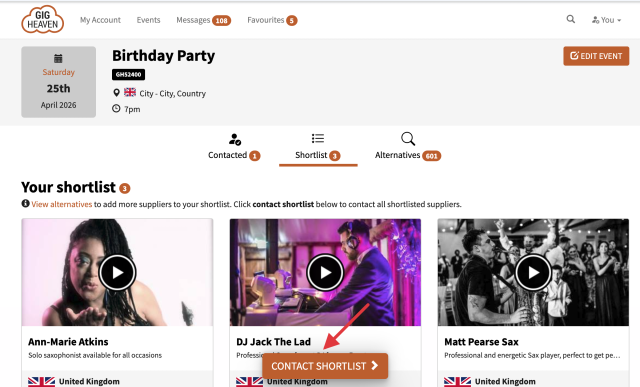
Open My Account and go to your event. You'll see a Shortlist tab showing everyone you've saved for that event, with a count next to it.
Contacting everyone on your shortlist
- Open your event and go to the Shortlist tab.
- Click Contact shortlist.
- Write your message. Include the essentials: date, location, event type, timings, budget range, anything that helps suppliers decide quickly whether they're a fit.
- Send. The same message goes to every shortlisted supplier at once.
Each supplier gets your enquiry as a separate conversation, so their replies come back to you individually. You can then decide who to progress with.
Removing a supplier from the shortlist
Click the favourites / shortlist icon again on their listing, or open the Shortlist tab and remove them there. Removing doesn't affect any existing conversation, it just takes them out of your active shortlist.
Comparing replies
When replies come in, compare on:
- Price. Quoted for your specific event, not just the listed number.
- What's included. Travel, equipment, extras, break music.
- Reply speed and tone. Fast and friendly usually stays fast and friendly.
- Availability. Confirmed for your date.
Would you rather we did it?
If you'd like our team to assemble a shortlist for you and send your event out, see Let us plan your event.
If you have any trouble, please contact us.