Help & Support/ Shortlisting and contacting several suppliers at once
Shortlisting and contacting several suppliers at once
When you're comparing several suppliers, you can add them to a shortlist and then contact them all with a single enquiry. This article covers building the shortlist and sending the bulk enquiry.
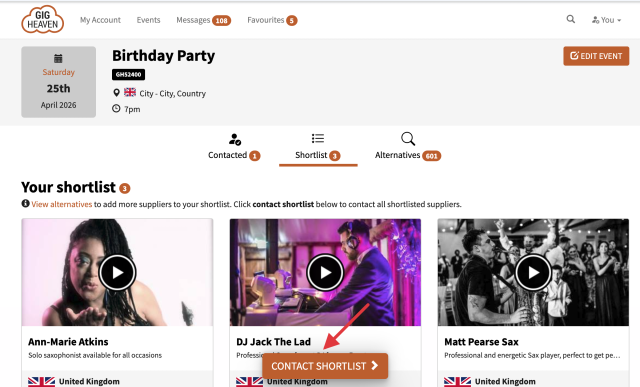
The Shortlist tab on an event, with three saved suppliers and the CONTACT SHORTLIST button.
Adding suppliers to your shortlist
Start from a supplier's listing page or a search result.
Click the favourites / shortlist icon to add them.
Repeat for every supplier you want to compare.
Your shortlist is linked to your account, so it's there whenever you sign in, from any device.
Viewing your shortlist
Open My Account and go to your event. You'll see a Shortlist tab showing everyone you've saved for that event, with a count next to it.
Shortlists are per-event. You can have different shortlists for different events, for example, a band shortlist for a wedding and a DJ shortlist for a Christmas party.
Contacting everyone on your shortlist
Open your event and go to the Shortlist tab.
Click Contact shortlist.
Write your message. Include the essentials: date, location, event type, timings, budget range, anything that helps suppliers decide quickly whether they're a fit.
Send. The same message goes to every shortlisted supplier at once.
Each supplier gets your enquiry as a separate conversation, so their replies come back to you individually. You can then decide who to progress with.
Removing a supplier from the shortlist
Click the favourites / shortlist icon again on their listing, or open the Shortlist tab and remove them there. Removing doesn't affect any existing conversation, it just takes them out of your active shortlist.
Comparing replies
When replies come in, compare on:
Price. Quoted for your specific event, not just the listed number.