
Once you've agreed a booking contract, one step remains to confirm the booking: paying the deposit. The deposit is 10% of the total fee, paid by card to Gig Heaven - it's our service fee, and paying it is what locks the booking in and shares direct contact details between you and the supplier. This article walks through exactly where to pay and what happens afterwards. For how the money side of a booking fits together, see the deposit, and how the rest is paid.
Where to find the Pay deposit button
As soon as you agree the contract, you're taken back to your booking page, which now says Contract signed - please click here to pay the deposit now with a Pay deposit now button. The same button also appears in your conversation with the supplier, in the Contract agreed message.
There's no deadline pressure here: the button stays on the booking until the deposit is paid, so if you need to come back later, just open the event in My Account when you're ready. Do bear in mind the booking isn't confirmed - and the supplier's date isn't locked in - until the deposit is paid.
Paying on the secure checkout
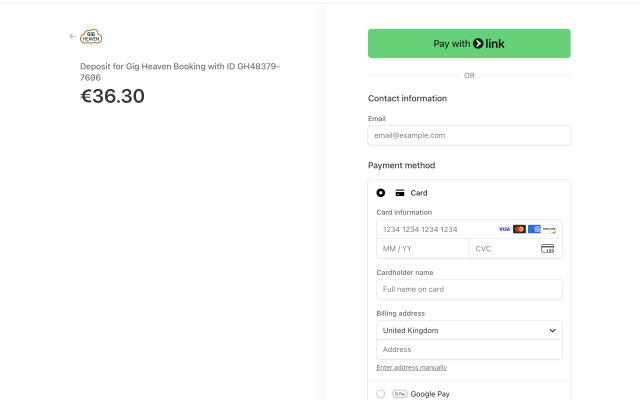
- Click Pay deposit now. You'll be taken to a secure checkout page run by Stripe, our payment processor - your card details never touch Gig Heaven's servers (see how your card details are kept safe).
- Check the payment line - it reads "Deposit for Gig Heaven Booking with ID GH..." followed by your event and contract numbers, with the deposit amount from your contract.
- Enter your card details and billing address (use the address your bank has for the card), and submit the payment. Your bank may ask you to verify the payment - a code to your phone or an approval in your banking app.
What happens after you pay
- You're returned to Gig Heaven, where a "Your payment is being processed" page waits for Stripe to confirm the payment - usually a few seconds.
- Your booking's status changes to Contract fully confirmed (deposit paid), and the event is locked in.
- You receive an Event confirmed! message with the supplier's direct email address and phone number - and they get yours - so you can arrange the final details together. The message also repeats the supplier's payment instructions for the remaining balance.
- A Payment Receipt button appears on the booking - see how to view your payment receipt.
If you can't pay by card
- If your card is declined, it's nearly always something small - see failed card payments for what to check and how to retry safely.
- If you can't use a card at all, we can arrange another way to pay, such as bank transfer - see alternative payment methods.
If you have any trouble, please contact us.