Your email address on Gig Heaven is how we reach you with enquiry notifications, contract reminders, and messages. You can change it any time from your My Account page.
How to change your email address
- Go to My Account and sign in.
- Click Edit contact details.
- Replace the existing email address with the new one.
- Click Save changes.
Verifying your new email address
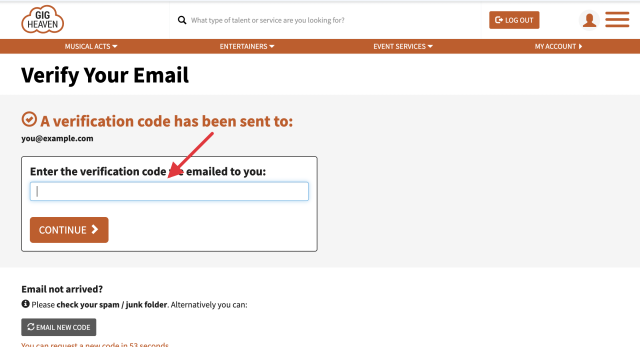
For security, we need to confirm the new email address belongs to you. After saving the change we send a short verification code to the new address. Open the email, copy the code, and enter it on the verification page. For the full walkthrough see Verifying your email address.
If the code hasn't arrived after a couple of minutes, check your spam folder. You can request another code from the same page (there's a short wait of about 2 minutes between requests).
Until you've entered the code, your new email address is saved on the account but marked as unverified. We hold off sending marketing emails to unverified addresses.
If you signed up with Google, Apple, or Facebook
When you created your Gig Heaven account via Google, Apple, or Facebook, we saved the email address that was on your provider profile at the time. If you later change your email on the provider (for example, switching your Gmail to a new address), that change doesn't flow through to Gig Heaven automatically. Update your Gig Heaven email separately using the steps above so we can still reach you.
If the new email is already in use
Each Gig Heaven account needs a unique email address. If you try to save an email that's already tied to another account, the save won't go through. In that case, either sign in with that other account, or contact us and we'll help you merge or recover them.
If you have any trouble, please contact us.