
About message reminders
When a customer sends you a message and it is still waiting for an answer, we email you a reminder. The reminder names the enquiry it is about - the event, the date and its booking reference, for example GH12345: Wedding on 1st October - a message is waiting for your reply - so you can tell at a glance which conversation it means.
If you have more than one enquiry waiting, you get a single email listing them, with its own set of buttons beside each one.
The quickest way: use the buttons in the reminder email
Every enquiry in a reminder email has three options next to it. Two of them work without logging in, so you can deal with a reminder from your phone in one tap.
- View message - opens that conversation so you can reply. You will be asked to log in, because it shows what the customer wrote.
- Not available - tells the customer you cannot do this event and closes the enquiry. The reminders stop.
- No reply needed - stops the reminders about the message that is waiting. The customer is not told anything and your conversation is left exactly as it is.
Each of the last two asks you to confirm on a short page before anything happens, and each link works once.
"No reply needed" or "Stop all reminders"?
They are different, and the difference matters:
- No reply needed deals with the message that is waiting now. If the customer writes to you again, we will let you know - that is a new message, not the same one.
- Stop all reminders switches this enquiry off for good, including if the customer writes again. You will find it offered on the confirmation page after you use "No reply needed".
Either way the conversation stays open and you can still reply from your messages page whenever you like.
How to turn off all message reminders for a booking
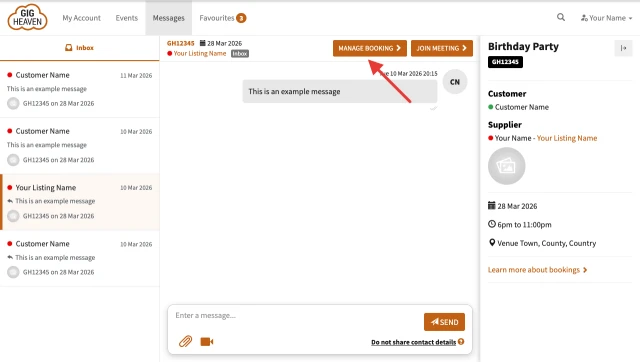
- Visit your Manage Booking page
- Locate the Reminders section (near the bottom of the page)
- Toggle the reminders button to Off
This is the same switch as the "Stop all reminders" link in the email.
How to mark a specific message as not needing a reply
Click the Mark as "No Reply Needed" link. This is located under each message from customers on your Messages Page. It does the same thing as the "No reply needed" button in the reminder email.
Rejecting an event
You can also reject an event from your Manage Booking page to stop receiving reminders for that event, which is the same as using "Not available".
If you tell a customer in a message that you cannot do their event, we will spot it and offer you a Tell the customer I'm not available button in the conversation. It is worth using: until an enquiry is actually marked as not available, the customer is still waiting on you as far as the site is concerned, and the reminders keep coming.
When we do not send a reminder
If you have already replied and the customer's last message was simply a thank-you or an acknowledgement - "ok, thanks", "no worries, thanks for letting me know" - we do not treat that as something you owe an answer to, and you will not be reminded about it.