
Once an event is done with (or you've decided not to pursue it), you can archive the conversation to tidy up your inbox. Archiving doesn't delete anything; it just moves the event out of your main view.
Who sees the archive option
Archiving is a supplier feature. It keeps your events list focused on the bookings that still need your attention. Customers don't currently have an archive in the same way, but messages for completed or cancelled events naturally move down the list as newer events come in.
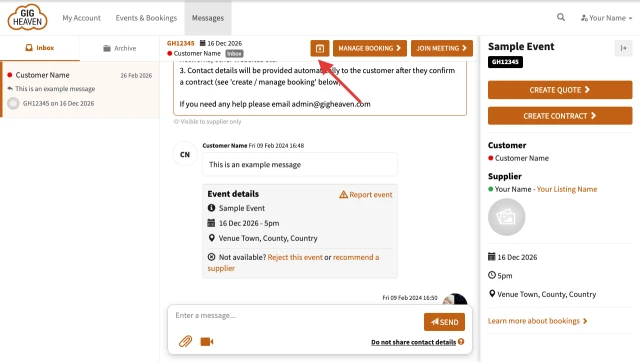
Archiving a conversation
- Go to My Account and open the event you want to archive.
- Click the Archive button (the folder-close icon in the event header). On mobile this is labelled Archive Messages.
- The conversation disappears from your main inbox and moves to the archive.
Viewing archived conversations
On your events list there's a filter or tab that shows archived events. Switch to that view to see everything you've archived so far.
Unarchiving
If you need an archived conversation back in your main inbox (for example, the customer sent a follow-up), open it from the archive and click Move conversation to inbox (the unarchive button). It'll slot back in with your active events.
What archive is good for
- Completed bookings you've already been paid for and reviewed.
- Enquiries that went nowhere so they stop competing for attention.
- Spam or duplicate enquiries, though you may prefer to report those first.
Archive vs delete
There isn't a delete option for conversations, and that's deliberate. Keeping the full history means if a question comes up later (from a customer, from us, or for your own records) the context is still there.
If you have any trouble, please contact us.