
Every booking contract on Gig Heaven carries a signing deadline - the Latest Contract Can Be Agreed date the supplier chooses when creating the contract. If the customer hasn't agreed the contract by the end of that day, it expires automatically. Nothing is lost when that happens: the contract, the conversation and the booking all stay exactly as they were, and the supplier can revive the contract in a couple of clicks. This article explains what expiry looks like for both sides and how to get the booking moving again.
Why contracts expire
While a contract is open for signing, the supplier is expected to reserve their availability for the event date - so a contract can't stay open for ever. The deadline puts a limit on that commitment:
- Before the deadline, we remind the customer by email that the contract is waiting for their signature (up to three reminders, at least a day apart).
- At the end of the deadline day, if the contract still hasn't been agreed, it expires automatically and its status changes to Contract expired (see understanding contract statuses).
- After that, we email the supplier to let them know the customer didn't sign in time, so they can decide what to do next (up to three emails, three days apart).
What expiry looks like
- For the customer - opening the contract now shows "This contract has expired" instead of the signing page. You can still view the contract itself with the View Contract button, but there's no longer an option to agree it. The page invites you to message the supplier asking them to extend the due date.
- For the supplier - the booking's status changes to Contract expired, and the contract panel on your Manage Booking page explains that it wasn't agreed before the due date, with an Extend due date button ready to fix it.
Reviving an expired contract: extend the due date
If both of you still want the booking, the supplier simply gives the customer more time:
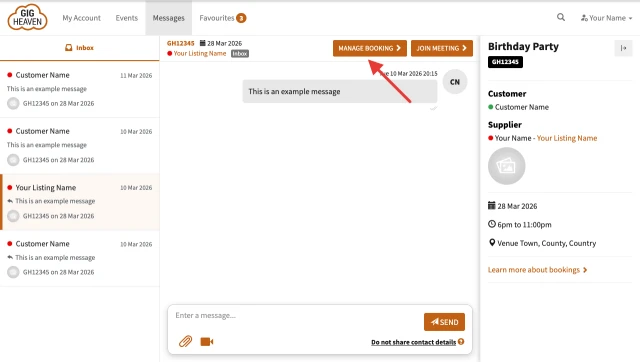
- Go to My Account and open the conversation with the customer, then click Manage Booking at the top. (On your Events & bookings list, an expired contract also shows an Extend button that takes you straight there.)
- In the contract panel, click Extend due date.
- Choose a new latest date the contract can be signed by - give the customer plenty of time, but remember you're reserving your availability until that date - and click Save.
Extending puts everything back the way it was before the deadline passed:
- The contract returns to Contract sent (awaiting customer signature), with the same terms as before - extending changes the deadline and nothing else.
- The customer gets a message and an email letting them know the due date has been extended, with a link to view and agree the contract.
- The signature reminders start again, so the customer will be nudged before the new deadline too.
If the contract needs changes as well
Expiry often happens because something about the booking was still being discussed. Extending doesn't edit the contract - to change the terms, extend the due date first, then ask the customer to open the contract and click Request edits. That unlocks the contract for the supplier to update and re-send. See amending a contract for how that works.
If you're the customer
You can't extend the contract yourself - only the supplier can. If you still want to go ahead, use the send a message link on the expired-contract page (or message the supplier from My Account) and ask them to extend the due date. Once they do, you'll get an email and can agree the contract and pay the deposit as normal.
If you have any trouble, please contact us.