The booking contract is what turns a conversation into a confirmed booking. It sets out, in writing, exactly what you'll provide, where and when, what the customer will pay and how - and once the customer agrees it and pays the deposit, the booking is confirmed and both of you are protected. This guide walks through creating one from start to finish, with advice on the parts suppliers most often leave too vague: payment instructions, cancellation, and extra terms.
A contract is different from a quote: the quote is your price, the contract is the agreement. Usually you'll send a quote first, and create the contract once the customer says yes.
Opening the contract editor
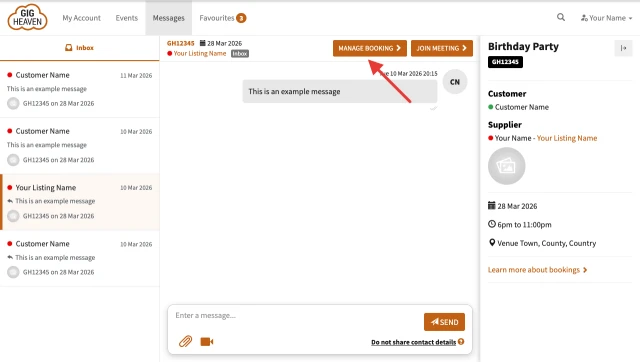
- Go to My Account and open the conversation with your customer.
- Click Manage Booking at the top of the conversation.
- On the booking page, click Create contract (or Edit contract if you've already started one).
Filling in the details
The editor pre-fills what it can - names, addresses, the venue and the event date come from the enquiry and your accounts - but check every field rather than trusting it. This is the document both of you are agreeing to.
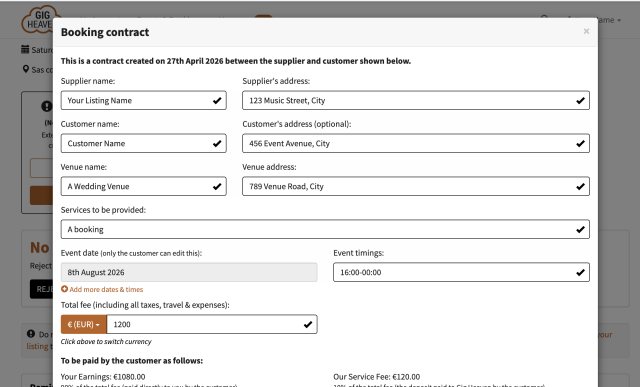
- Supplier and customer names and addresses - check the pre-filled details are right. The customer's address is optional.
- Venue name and address - confirm the exact venue with the customer. If the enquiry only had a rough location, pin it down here: "the address on the contract" is what settles any confusion on the day.
- Services to be provided - be specific. Not just "DJ" but what the customer actually gets: how many sets and how long, what equipment you bring, setup and pack-down. What you write here is what you're contractually promising, and a clear description prevents most disputes before they start.
- Event date - fixed; only the customer can change the event date.
- Event timings - the hours you'll be performing or providing the service, e.g. 7pm-11pm. If the booking covers several days, use Add more dates & times (see booking multiple dates).
- Total fee - the full, all-inclusive price: your fee, travel, expenses and any taxes. The currency picker sits beside it if you charge in something other than the default (see supported currencies).
How the money is split
Under the fee, the editor shows how the total divides. This appears on the contract itself, so the customer sees exactly the same numbers:
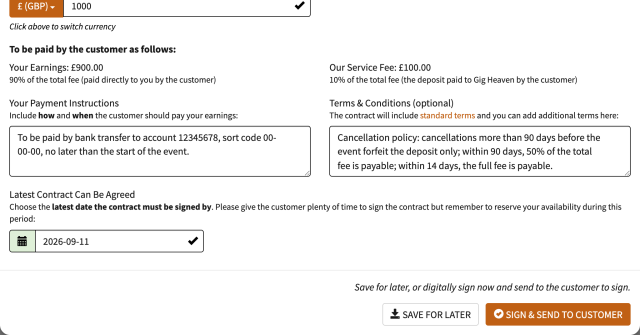
- Your earnings - 90% of the total, paid directly to you by the customer, following your payment instructions below.
- Our service fee - 10% of the total, paid to Gig Heaven by the customer as the deposit. Paying it is what confirms the booking.
Your payment instructions - say how, and say when
This box matters more than any other, because collecting your 90% is between you and the customer - the contract is the only place the arrangement is written down. Cover both halves:
- How the customer pays you: bank transfer with your account number and sort code, cash on the day, or whatever you prefer. If it's a transfer, put the account details in the instructions so the customer has them from day one.
- When they pay: ask for the balance no later than the start of the event - or before. Never agree to be paid after the event: once it's over, you've already provided everything and have nothing left to withhold, so chasing a late payment is far harder. Plenty of suppliers ask for the balance 7 or 14 days before the event, or in cash before they start setting up - both are normal and customers expect them.
Extra terms - and why a cancellation policy belongs there
Every contract automatically includes Gig Heaven's standard terms (there's a link to read them right in the editor). The Terms & Conditions box is for anything extra you want to add on top - and one addition is worth making every time:
Other terms suppliers commonly add:
- What you need on the day - safe access to power, a covered or sheltered performance area for outdoor events, parking or load-in access, changing space.
- Refreshments - a meal and drinks for the performers on long bookings.
- Overtime - your rate if the customer asks you to play on beyond the agreed finish, e.g. "£100 per additional 30 minutes, payable in cash on the night".
- Breaks - how many and how long, if your sets don't already make it obvious.
Keep them short, reasonable and specific. If an extra term ever contradicts the standard terms, the standard terms win - so use this box to add detail, not to rewrite the rules.
The signing deadline
Latest Contract Can Be Agreed is the date the contract must be signed by. Give the customer plenty of time, but remember you're expected to reserve your availability while the contract is open - so don't leave it open for months either. If the deadline passes unsigned, the contract expires and you can extend or reissue it.
Sending it
- Save For Later - keeps your draft without sending anything, so you can finish it another time.
- Sign & Send To Customer - digitally signs the contract as you and sends it to the customer to sign.
What happens next
- The customer reviews the contract. They can agree it, or request amendments - in which case you edit and re-send it, as many times as it takes.
- When they agree, they pay the 10% deposit to Gig Heaven and the booking is confirmed (see how payments work).
- The customer pays your 90% directly, following your payment instructions.
If plans change after confirmation, see cancelling a booking.
If you have any trouble, please contact us.