
When a customer enquires, the next step is to send them a quote: a price for their specific event. This article explains how to create a quote from an enquiry, what your quote should include, and how the quote calculator works out your earnings and our service fee.
A quote is different from the prices on your listing. Your listing prices give customers a general idea before they get in touch; a quote is a firm price tailored to one enquiry, with the date, timings, and any extras taken into account.
Creating a quote from an enquiry
- Go to My Account and open the customer's enquiry from your messages or events.
- In the Are you available? section, click Create quote.
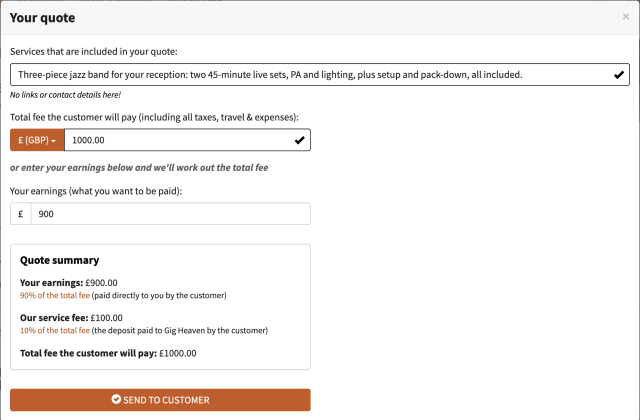
- The quote window opens, with space to describe what you'll provide, a currency selector, and the quote calculator.
Describing what's included
In the services box, explain exactly what the customer gets for the price: how long you'll play, how many sets, what equipment you bring, setup and pack-down, and anything else relevant. The clearer you are, the fewer back-and-forth messages you'll need.
What your quote should include
Your quote is the total, all-inclusive price the customer will pay. It must cover everything:
- Your fee for performing.
- Travel to and from the venue.
- Expenses such as accommodation, equipment hire, additional musicians, and so on.
- Any taxes you need to charge, including VAT if you're registered (see VAT, invoices, and paying as a business).
The customer sees the line "This quote includes all taxes, travel and expenses" alongside your price, so quote the full, final figure. Don't plan to add costs later: a customer who agrees a price and is then asked for more is far more likely to walk away.
Using the quote calculator
You can fill in the calculator from either direction, whichever is easier for you:
- Total fee the customer will pay: enter the full price, and the calculator shows what you'll earn.
- Your earnings: enter what you want to take home, and the calculator works out the total fee, including our service fee, for you.
Either way, the calculator splits the total into:
- Your earnings: 90% of the total, paid directly to you by the customer.
- Our service fee: 10% of the total. The customer pays this to Gig Heaven as the deposit that confirms the booking.
Sending your quote
When you're happy, click Send To Customer. Your quote is briefly checked before the customer sees it, so there may be a short delay. Once it's through, the customer is notified and can message you with questions or request a booking contract.
Sending a more detailed quote
For bigger or more complex jobs, you can send a fuller quote: message the customer directly and attach a document if you need to. Just make sure any total you give still includes our 10% service fee. Use the quote calculator to work out the right figure.
What happens next
If the customer is happy, they'll request a contract. From there:
- You create the booking contract (see Creating a booking contract).
- The customer agrees and pays the 10% deposit to Gig Heaven to confirm (see The deposit, and how the rest is paid).
- You receive the remaining 90% directly from the customer.
If you have any trouble, please contact us.