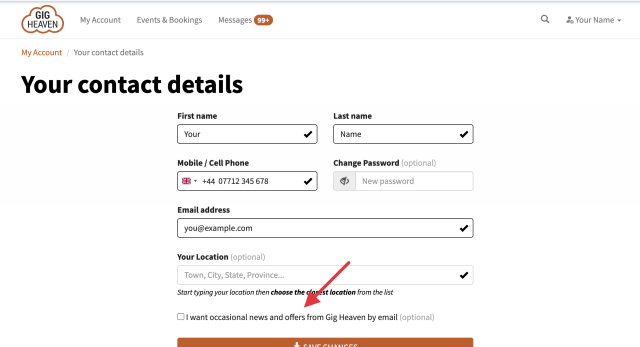
The marketing email opt-in toggle on the Edit contact details page.
Types of email we send
There are three kinds of email Gig Heaven might send you:
Transactional: essential messages like new enquiries, contracts, deposit confirmations, and password resets. These always come through while your account is active.
Notifications: reminders about messages, contracts, or events that need your attention. See How to turn off message reminders for how to reduce these.
Marketing: occasional news, tips, and offers. You can opt in or out from your account (see below).
Email notifications
Every time you receive a message on Gig Heaven you'll get a notification to your email inbox. It goes to the email address saved in your account. If you have problems receiving our emails, add admin@gigheaven.com and noreply@gigheaven.com to your contacts or safe senders list, and check your spam folder.
Email notifications are sent automatically to your registered email address.
Find the checkbox labelled I want occasional news and offers from Gig Heaven by email.
Tick it to opt in, clear it to opt out.
Click Save changes.
One-click unsubscribe: every marketing email we send has an unsubscribe link at the bottom. Clicking it opts you out immediately, without needing to sign in.
We hold off sending marketing emails until your email address is verified. If you've never verified (or you've just changed it), go to My Account and follow the verify-email prompt. For the full walkthrough, see Verifying your email address.
Browser notifications
From your account you can subscribe to browser notifications, so new messages pop up in your browser while a tab is open. On desktop it's a one-click subscribe; on mobile you'll need to follow a few simple instructions to get set up. See our blog post How to enable browser notifications for step-by-step.
Look for the browser notifications settings near the "Your Contact Details" section in your account.
SMS text alerts (suppliers)
If you're a supplier, you can receive a free SMS text alert the moment a customer contacts you about a new event, so you can reply fast (quicker replies win more bookings).