
Help & Support / Attaching photos, files, or videos to a message

Attaching photos, files, or videos to a message

You can send photos, videos, audio files, documents, and YouTube or Vimeo video links directly in your messages to a customer or supplier. The paperclip icon attaches files of any supported type, and the camera icon attaches a YouTube or Vimeo video link. This article covers both options, what's allowed, and a few tips on when attachments help.
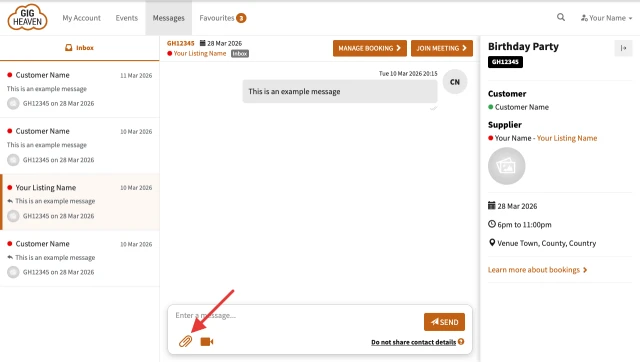
Message composer with the paperclip icon highlighted
The message composer in your conversation — click the paperclip icon to attach any file (photo, video, audio, or document).

Sending a file attachment (paperclip icon)

The paperclip handles every supported file type — photos, videos, audio, and documents. See the full list under What file types are supported below.
  1. Open the conversation from My Account.
  2. In the message box, click the paperclip icon.
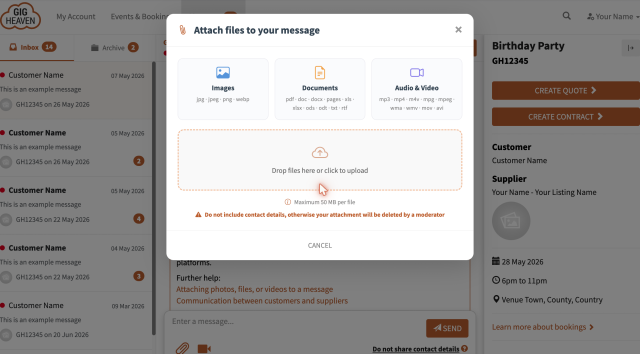
  3. Drop a file into the upload area, or click to browse from your computer.
  4. Add any covering message text, then send.
Attach files dialog showing the supported file types and a drop-zone
The attach-files dialog — drop a file in or click to browse. The supported types are listed at the top.

The recipient sees the attachment inline in the conversation and can open or download it from there.

Maximum file size is 50 MB per attachment. For larger files (long video, full audio mixes), link to a cloud storage service in the message instead, or use the audio section or video section of your listing.

What file types are supported

A wide range of common formats works out of the box (all sent via the paperclip icon):

  • Images. JPG / JPEG, PNG, WebP.
  • Documents. PDF, DOC / DOCX, Pages, TXT, RTF, ODT, ODS, XLS / XLSX.
  • Audio. MP3, MPG / MPEG, WMA.
  • Video. MP4, M4V, MOV, AVI, WMV.

Sending a YouTube or Vimeo video (camera icon)

The camera icon sits next to the paperclip in the message composer. Use it to attach a YouTube or Vimeo video link — the recipient can play the video inline in the conversation without leaving Gig Heaven.
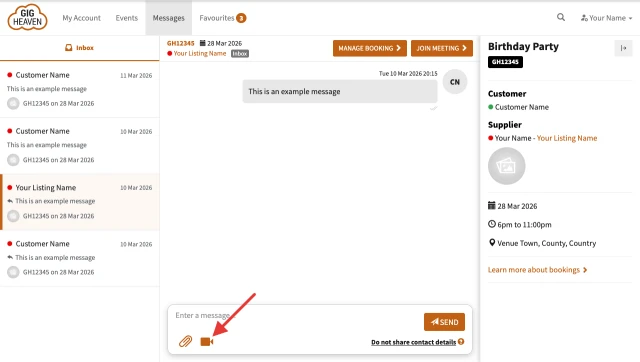
Message composer with the camera icon highlighted for YouTube or Vimeo links
The camera icon attaches a YouTube or Vimeo video link.
  1. Open the conversation from My Account.
  2. Click the camera icon in the message box.
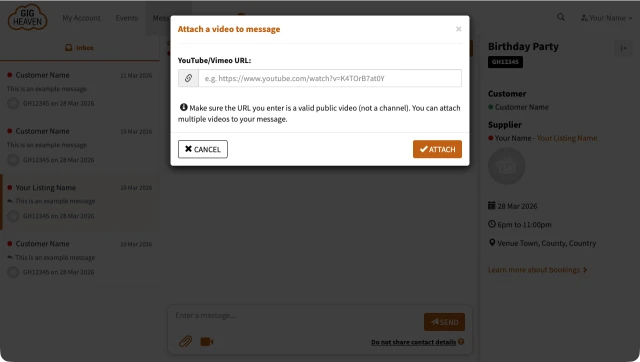
  3. Paste the YouTube or Vimeo URL and confirm.
  4. Add any covering message text, then send.
Attach a video dialog with a YouTube or Vimeo URL field
The attach-a-video dialog — paste a public YouTube or Vimeo URL and click Attach. You can attach multiple videos to one message.

If you want to send a video file rather than a link, use the paperclip icon instead — see supported video formats above.

Moderation

Every attachment goes through an automated moderation check before it's shown to the other side. If an attachment looks like it contains direct contact details or references to external booking platforms, we'll flag the message and ask you to keep communication on Gig Heaven. For the full picture, see Why we ask you to keep communication on Gig Heaven.

When attachments help

  • Stage plots and rider info for technical discussions.
  • Photos of the venue or setup space so the supplier can plan.
  • Quick audio snippets of specific first-dance or ceremony songs.
  • Signed paperwork or reference docs (although the contract itself stays on Gig Heaven).
  • YouTube or Vimeo demo links so the customer can hear or see your work without downloading.

Removing an attachment

Once a message is sent, its attachment is part of the conversation and can't be unsent. If an attachment contains something you'd rather the other side didn't have (for example, you attached the wrong file), send a quick follow-up message asking them to disregard it, and contact us if you'd like us to remove it on our side.

Open your messages

If you have any trouble, please contact us.

Related articles

Can't find what you're looking for?

We're here to help
Contact us