
Help & Support / Adding and reordering audio samples

Adding and reordering audio samples

Audio samples let customers hear what you sound like before they enquire. This article covers uploading audio files, reordering them, renaming, replacing, and deleting.
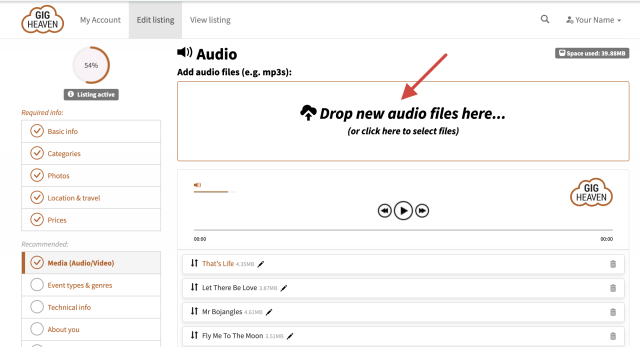
Media tab audio drop zone
The audio drop zone on the Media tab.

Where audio is managed

Open your listing from My Account and go to the Media tab. The audio section sits alongside video and SoundCloud options.

Uploading audio files

  1. Drag audio files onto the audio drop zone, or click to open a file picker.
  2. Each file uploads and appears in your list.
  3. Save your listing when you're done.
Each listing has 60 MB of total audio storage. We accept MP3, M4A, WAV, and AIFF files — uploads in formats other than MP3 are converted to MP3 automatically.

Choosing the right clips

  • Keep them short. Clips of around one minute work best. Customers skim.
  • Lead with your strongest. The top track is the one most people hear.
  • Show variety. If you play across styles (for example, cocktail jazz and dance-floor funk), include one of each.
  • Label each clip clearly. Let the title tell customers the style or line-up, for example Solo acoustic (3-piece) or Ibiza set (full band).

Reordering tracks

Drag tracks to reorder them. The new order saves as you go. The first track plays first when a customer clicks play.

Renaming a track

Click the track title and edit it. Use something more descriptive than the raw filename.

Replacing a track

There isn't a "replace" button. To swap one track for another:

  1. Delete the old track.
  2. Upload the new one.
  3. Drag it into the position you want.

Deleting tracks

Click the delete icon on any track. To remove all audio samples at once, use Delete all audio.

If upload fails

If a file won’t upload, the most likely cause is hitting the 60 MB total storage limit, or the file itself being over 60 MB. See Why won’t my audio files upload? for more fixes.

Using SoundCloud instead

If you already have a SoundCloud profile with clips set up, you can embed a SoundCloud playlist on your listing instead of (or in addition to) uploading audio files. SoundCloud doesn’t count against your 60 MB allowance. See Connecting your SoundCloud profile.

Edit your listing

If you have any trouble, please contact us.

Related articles

Can't find what you're looking for?

We're here to help
Contact us