
Help & Support / Connecting your SoundCloud profile

Connecting your SoundCloud profile

If you already have music on SoundCloud, you can embed a playlist on your Gig Heaven listing so customers can listen without leaving the page. This article covers adding the SoundCloud link, how the embed looks, and how to remove it.
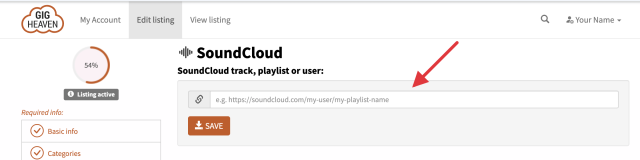
SoundCloud playlist field on the Media tab
The SoundCloud playlist field on the Media tab.

Adding your SoundCloud playlist

  1. Go to My Account and sign in.
  2. Open your listing and go to the Media tab.
  3. Find the SoundCloud section.
  4. Paste the full URL of a SoundCloud playlist, for example https://soundcloud.com/my-user/my-playlist-name.
  5. Save.

Once saved, a SoundCloud player appears on your listing in the player colours that fit Gig Heaven's look (orange accent).

Use a playlist link, not a single-track link. Playlists show a track list customers can click through. You can create a SoundCloud playlist of your best clips in your SoundCloud account.

What plays on your listing

The embedded player is set up so customers stay focused on you, not on unrelated SoundCloud content:

  • Auto-play is off (customers press play themselves).
  • Related tracks, comments, and other user profiles are hidden.
  • Reposts are hidden.
  • The player loads lazily so it doesn't slow your listing down.

Removing or replacing the playlist

Back in the SoundCloud section of the Media tab, click Remove SoundCloud to clear the link. To swap in a different playlist, remove the old one and paste the new URL.

If the link won't save

If you see an error when saving a SoundCloud URL, check that:

  • The URL is a valid SoundCloud playlist address (not a single track or user profile).
  • The playlist is public, not private or unlisted.
  • The URL is complete and correctly typed (it's easiest to copy and paste from SoundCloud).

If it still won't save, please email admin@gigheaven.com or contact us.

SoundCloud alongside audio uploads

You can use SoundCloud and uploaded audio files on the same listing. If you only want one, we suggest picking whichever you keep more up to date. See Adding and reordering audio samples for the upload route.

Edit your listing

If you have any trouble, please contact us.

Related articles

Can't find what you're looking for?

We're here to help
Contact us