
Help & Support / Changing your password

Changing your password

You can change your password from your My Account page at any time. If you've forgotten your current password, you can reset it.
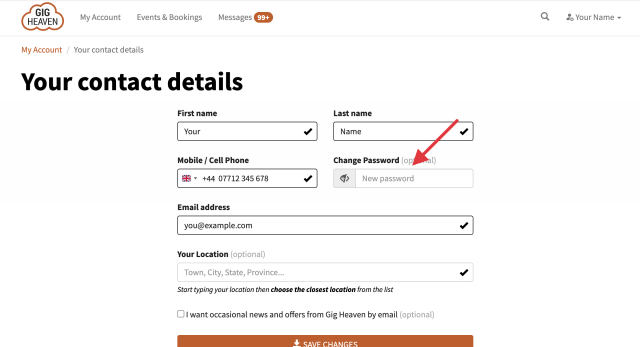
Change Password field on the Edit contact details page
The Change Password field on the Edit contact details page.

How to change your password

  1. Go to My Account and sign in.
  2. Click Edit contact details.
  3. In the Change Password box, type your new password.
  4. Click Save changes.
Choose a password that's at least 6 characters long and don't reuse a password you use on other websites.

If you sign in with a passkey or a social account (Google, Apple, Facebook), you don't have a password to change, but you can add one by filling in the Change Password box in Edit contact details. With a password set, you'll also be able to sign in using your email address.

Go to My Account

If you have any trouble, please contact us.

Related articles

Can't find what you're looking for?

We're here to help
Contact us