Photos are the single biggest factor in whether a customer clicks on your listing. This article covers uploading, reordering, cropping, deleting, and choosing your main image.
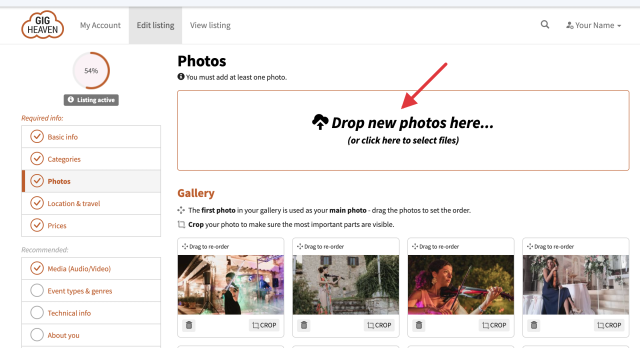
The Photos tab with the drop zone at the top and the Gallery thumbnails below.
Where photos are managed
Open your listing from My Account and go to the Photos tab. You'll see your existing photos and a drop zone for uploading new ones.
Uploading photos
Drag photos from your computer onto the drop zone, or click it to open a file picker.
Each photo uploads and processes automatically (we generate thumbnail, medium, and large sizes for you).
Save your listing when you're done.
Maximum file size is 50 MB per photo. Use JPG, PNG, WebP, or HEIC format. Landscape or wide-crop images typically look best on the listing.
Choosing your main (hero) image
The first photo in your order is used as the hero image at the top of your listing and in search results. To pick a different one:
Drag the photo you want to the leftmost / top position in the Photos tab.
Save your listing.
Reordering and cropping
Reorder: drag photos to change their order. The new order is saved as you go.
Crop: click the crop button on any photo to set a focal point. Useful if the automatic crop cuts off a face or key part of the image.
After cropping, check how your listing looks in all three layouts (desktop, tablet, phone) as suggested on the Improve & promote your listing page.
Deleting photos
To delete a single photo, click its delete/bin icon.
To remove all photos, use the Delete all photos action.
Remember: your listing needs at least one photo to stay active.
Photo-taking tips
Good light. Natural or stage lighting beats harsh flash every time.
In action. Live performance shots work much better than posed promos.
Variety. Show different setups (duo, trio, full band) if you offer them.
Recent. Keep photos current. Swap them out as you get new shots.
Quality over quantity. Ten excellent photos beats fifty average ones.
If an upload won't work
The two most common upload problems are:
File too big. Over 50 MB. Resize or recompress before uploading.
Unsupported format. Stick to JPG, PNG, WebP, or HEIC (iPhone) photos.